
UniTV APK Subtitles Not Working – Easy Fixes
Watching a movie or TV show without subtitles can be difficult, especially when the actors speak a different language. If UniTV APK subtitles are not working, there may be a simple problem with the app settings, video source, or internet connection. In most cases, you can fix the subtitle problem by checking the subtitle option, restarting the app, changing the video source, or updating the app. In this article, we have mentioned easy solutions you can try.
Why Are Subtitles Not Working on UniTV APK?
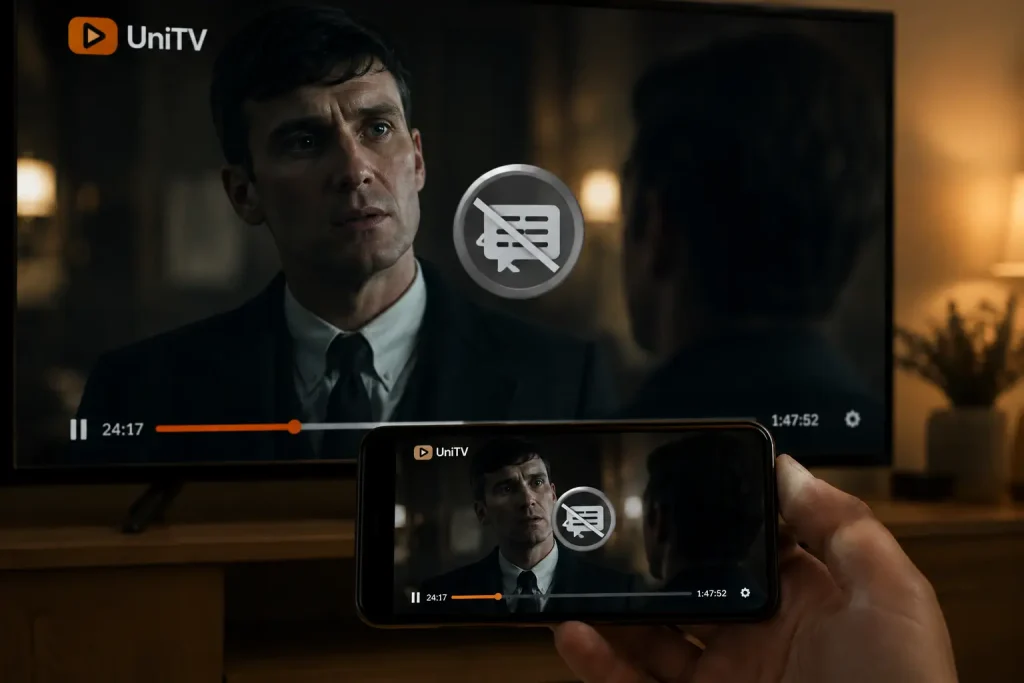
There can be several reasons why subtitles are not showing in UniTVnet APK. The subtitle option may be turned off, the selected video source may not support subtitles, or the subtitle file may not load correctly. A slow internet connection can also cause subtitles to load late or not appear at all. Sometimes, an old version of the app can cause problems with different features.
Check the Subtitle Option
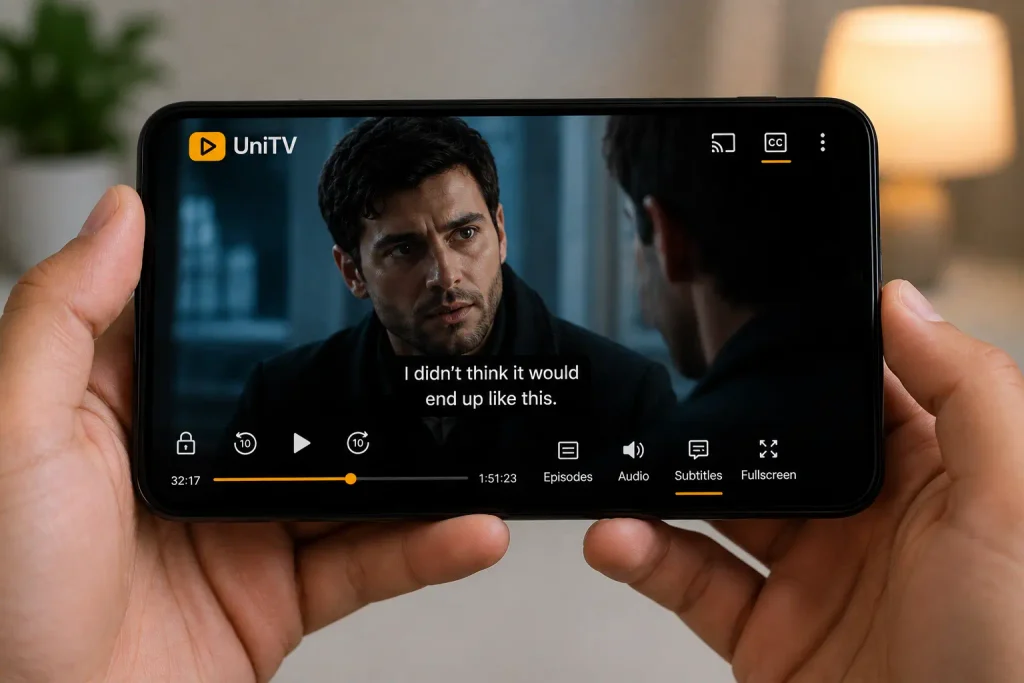
The first thing you should do is check whether subtitles are enabled. Open the movie or TV show you want to watch and look for the Subtitle, CC, or language option in the video player. Turn subtitles on and select your preferred language if it is available. If there is no subtitle option, try another video or episode because subtitles may not be available for every title.
Restart UniTV APK
A simple restart can fix many temporary problems. Close the UniTV APK completely and remove it from your recent apps. Wait a few seconds and open it again. Now play the same movie or TV show and check if the subtitles appear. This can help when the app has a temporary loading problem.
Check Your Internet Connection
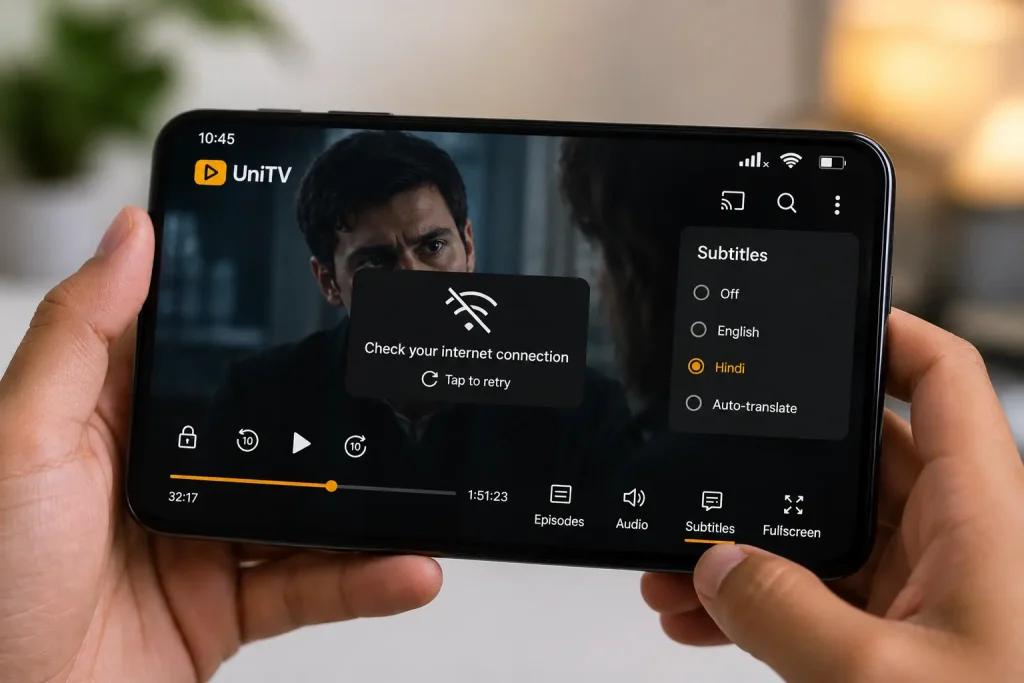
UniTV APK needs a stable internet connection to load streaming content and related data. If your internet is slow, subtitles may take longer to appear. Try switching between Wi-Fi and mobile data. You can also restart your router if you are using Wi-Fi. After getting a better connection, reopen the video and check the subtitles again.
Try Another Video Source
Sometimes the problem is with the particular video source rather than the app. If UniTV APK gives you different streaming sources, select another source and start the video again. Check whether subtitles are available there. This is one of the easiest things to try when subtitles work on one video but not another.
Select Another Subtitle Language
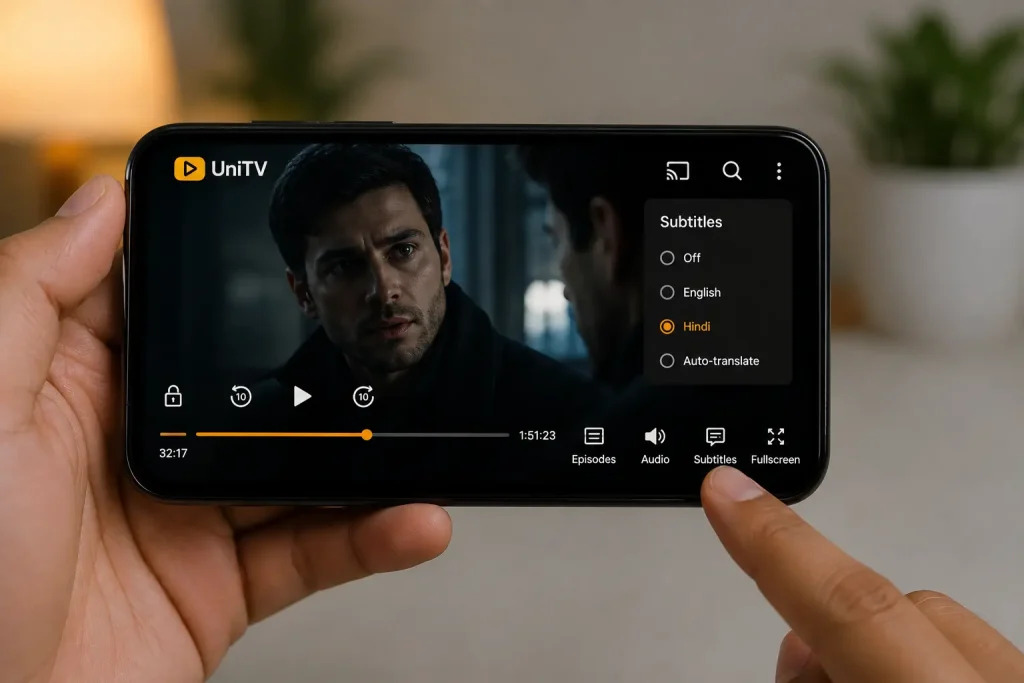
If subtitles are available but are not showing correctly, try selecting another language. Open the subtitle menu and choose a different language. Then wait a few seconds for the subtitle track to load. If one language does not work, another available subtitle track may work normally.
Clear the App Cache
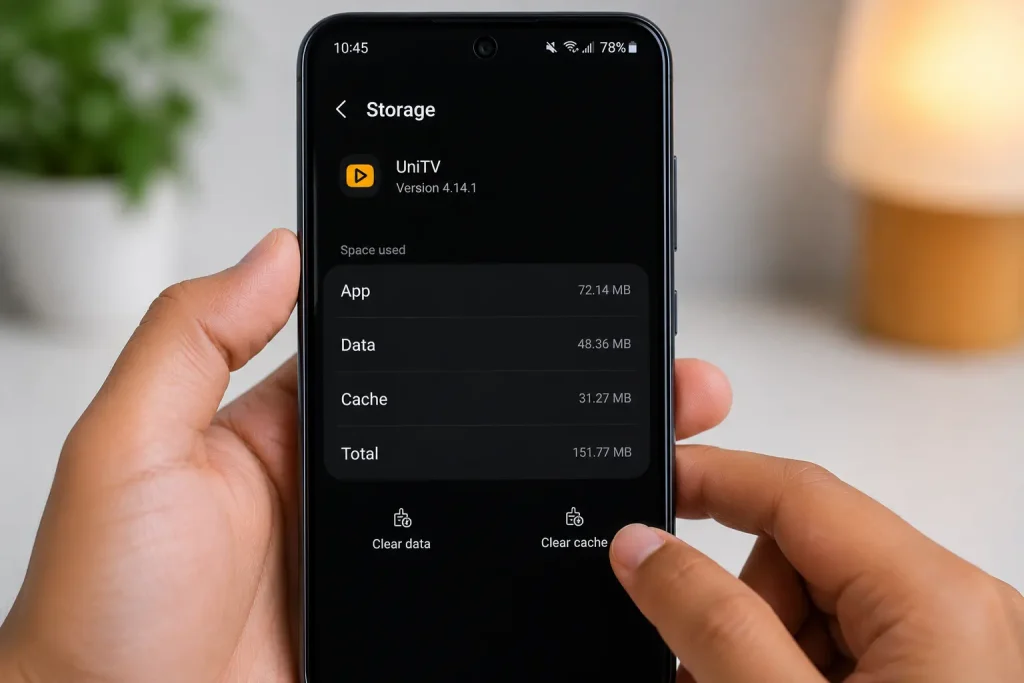
A large or damaged cache can sometimes cause problems with apps. Go to your device Settings, open Apps, and find UniTV APK. Select Storage and tap Clear Cache. Do not select Clear Data unless you are okay with resetting the app because it can remove saved settings. After clearing the cache, open UniTV APK again and test the subtitles.
Update UniTV APK
Using an older version of UniTV APK can sometimes cause feature problems. If a newer version is available, updating the app may fix subtitle issues and other bugs. Before updating, make sure you use a trusted source and install a version that is compatible with your device. After updating, restart the app and try playing a movie again.
Restart Your Device
If none of the above solutions work, restart your phone, tablet, Android TV, or other device. A restart can clear temporary system problems and refresh the internet connection. Once your device starts again, open UniTV APK and check the subtitles.
Try Another Movie or TV Show
The problem may not be with your app. Some movies and TV shows may simply not have subtitles available. Play another title and check the subtitle option. If subtitles work on another video, the original video may not have a working subtitle track.
Final Words
If UniTV APK subtitles are not working, do not worry. Start by checking the subtitle option and your internet connection. You can also restart the app, try another video source, select another language, clear the cache, or update the app. If subtitles work on other movies but not on one particular title, the problem is likely related to that video’s available subtitle track rather than your device.