
UniTV APK Keeps Crashing – Causes and Easy Fixes
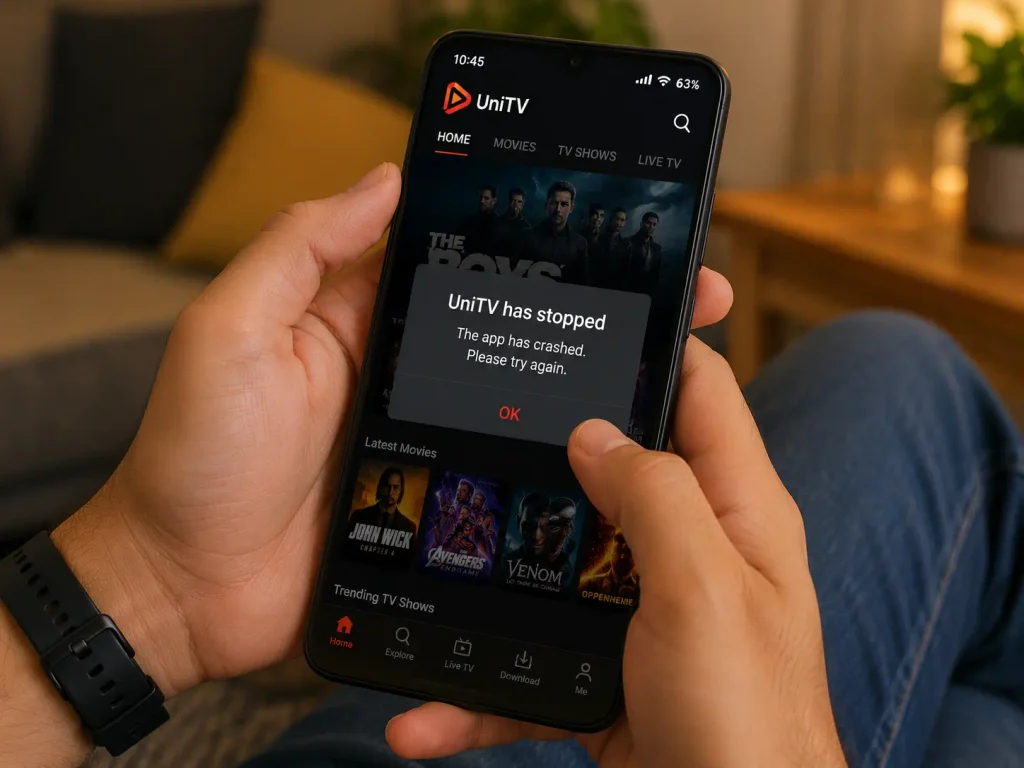
It is very frustrating when you are watching movies, tv shows, series, reality shows or Live Sports, and suddenly the UniTVnet APK crashes. The app may close suddenly, freeze for a few seconds, or return to the home screen without any warning. If you are also facing an error while opening the app or playing a video, then you are at the right place. There can be several reasons behind this problem like low storage, old app version, damaged apk files, cache, weak internet, or device compatibility issues. All of these issues can cause UniTV APK to crash. Do not stress because most of these problems are really easy to fix and you can easily fix them by following the methods mentioned below in the article.
In this guide, we will explain the common reasons why UniTV net APK crashes and show you simple ways to solve the problem.
Why Does UniTV APK Keep Crashing?
It is really important to know the exact issue that you are facing while using the app before fixing the problem. Here are some common reasons:
- Your device has very little free storage.
- The UniTV APK version is outdated.
- The app cache is full or damaged.
- The APK file was not installed correctly.
- Your internet connection is unstable.
- Your device does not have enough memory available.
- The app may not work properly with your Android version.
- Other apps may be using too many device resources.
- Temporary system problems can also cause crashes.
Finding the actual issue can make the problem much easier to fix.
Restart Your Android Device
If your app is crashing and you are facing difficulty in watching your favourite content, then the first thing you should try is restarting your device. Sometimes, the UniTV net APK crashes because of a temporary system problem, and restarting the device closes all the background processes and gives the system a fresh start.
Turn off your Android phone, TV box, or Android TV device and wait for a few seconds, and then turn it back on and open UniTV APK again. If the app works normally after restarting, then there was a temporary system issue.
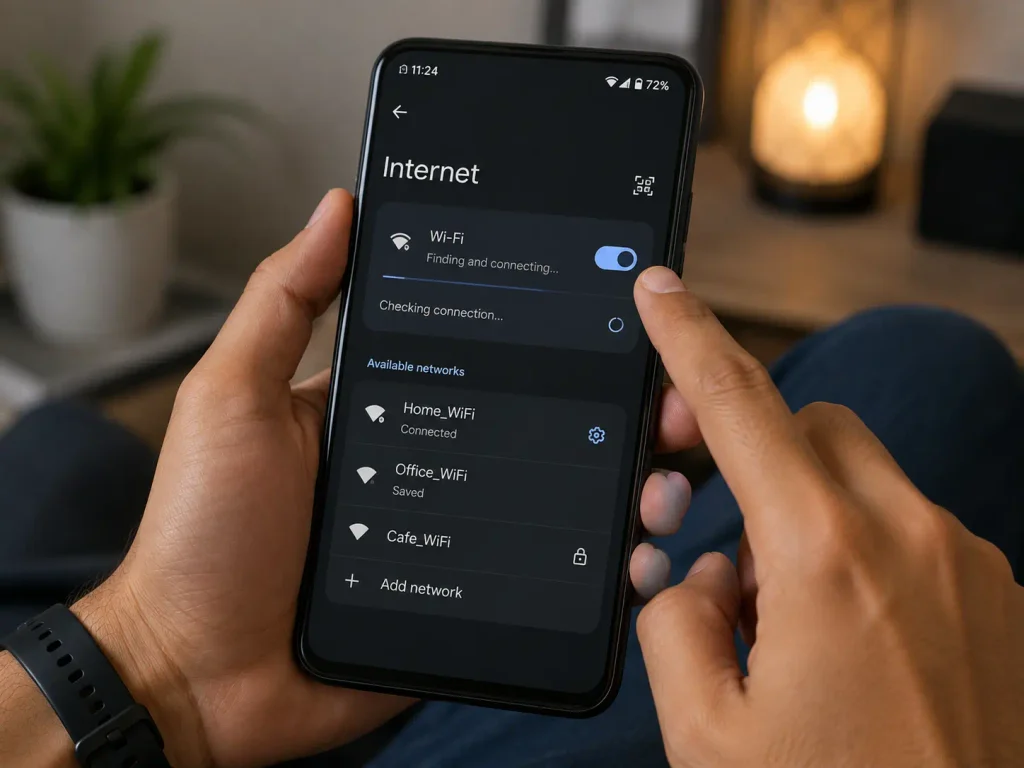
Check Your Internet Connection
A poor internet connection can also cause problems when using streaming apps. If UniTV APK crashes when you start a movie or TV show, check your internet connection first. Try opening another app or website to see if the internet is working properly. You can also restart your Wi-Fi router and reconnect your device.
Clear UniTV APK Cache
A large or damaged cache can sometimes make an app slow, freeze, or crash. Clearing the cache is one of the easiest things you can try. On most Android devices, you can follow these steps:
- Open Settings.
- Go to Apps or Applications.
- Find and select UniTV APK.
- Open Storage.
- Tap Clear Cache.
- Open UniTV APK again.
The exact names may be different depending on your Android device.
Free Up Storage Space
Your device needs free storage to work properly. If your phone, Android TV, or TV box is almost full, apps may become slow or start crashing. Check your available storage in the device settings. Remove apps you no longer use and delete unnecessary videos, photos, downloads, and other large files. After freeing some space, restart your device and try opening UniTV net APK again.
Reinstall UniTV APK
If clearing the cache and restarting the device do not help, then it means the installation is damaged. We will suggest you to reinstall the app because it helps in fixing problems caused by incomplete or corrupted app files. First, remove the current UniTV APK from your device, and then restart the device and install a fresh APK file from a source you trust. Make sure the download finishes completely before installing it. A damaged or incomplete file can cause the app to crash.
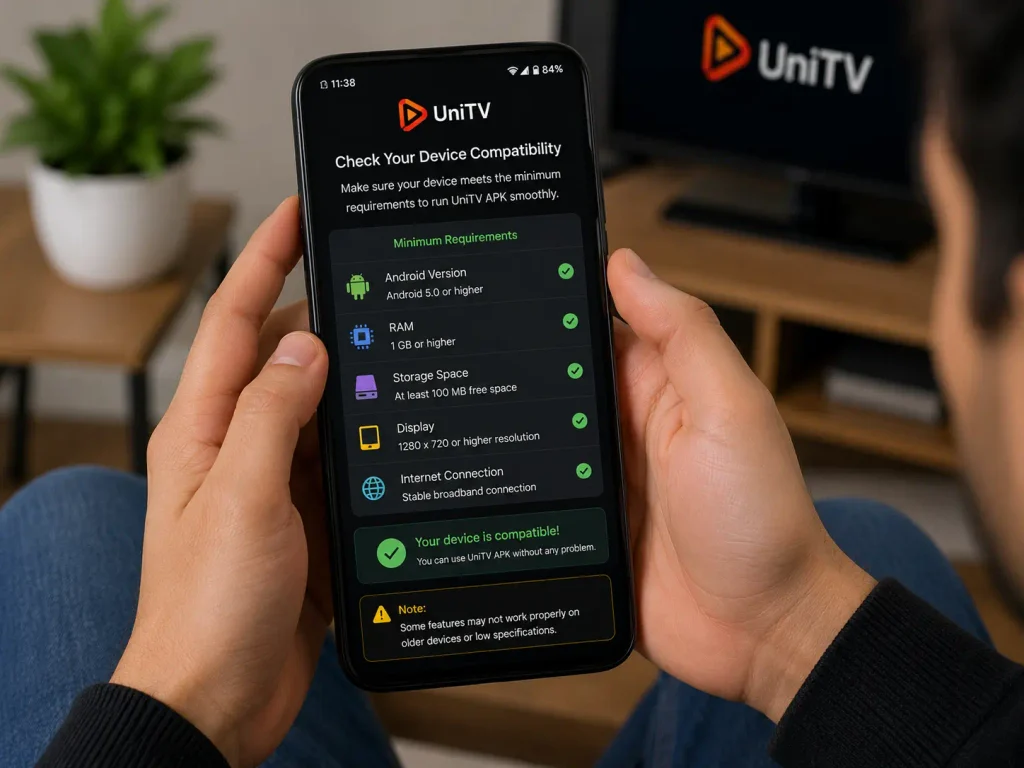
Check Your Device Compatibility
Not every APK works perfectly on every Android device. Your Android version, hardware, screen type, and available memory play a very important role in using the app. If UniTV APK crashes only on one device but works normally on another device, then the problem is with the compatibility of your device. Check whether your device meets the requirements of the UniTV APK version you are trying to use.
Close Background Apps
Running many apps at the same time can use your device’s RAM, and if there is not enough memory available, then some apps may become slow or crash. Close apps that you are not using before opening UniTV APK. On an Android TV or TV box, also close unnecessary apps running in the background. This can give UniTV APK more memory to run smoothly.
Turn Off Battery or Performance Restrictions
Some Android phones have battery-saving features that restrict background activity. These settings can sometimes affect how apps work. If UniTV APK closes unexpectedly, check your device’s battery or app management settings. If the system is heavily restricting the app, adjusting the setting may help.
What to Do If UniTV APK Crashes When Playing Videos?
If the app opens normally but crashes when you play a video, try these steps:
- Check your internet connection.
- Restart the app.
- Clear the app cache.
- Try another video.
- Free up device storage.
- Close other apps.
- Restart your device.
- Check whether a newer app version is available.
If only one particular video causes the crash, the issue may be related to that specific video or stream rather than your device.
Final Thoughts
When UniTV APK keeps crashing, then there is usually a simple reason behind the problem. Low storage, a full cache, an outdated version, weak internet, limited memory, or compatibility issues can all affect app performance. Start with the easiest solutions. Restart your device, check your internet, clear the UniTV APK cache, and make some free storage space. If the problem continues, check for updates or reinstall the app using a trusted APK file. If UniTV APK still crashes after trying all these solutions, the problem may be related to the app version or your specific Android device.