
UniTV APK No Sound Problem – Easy Fixes
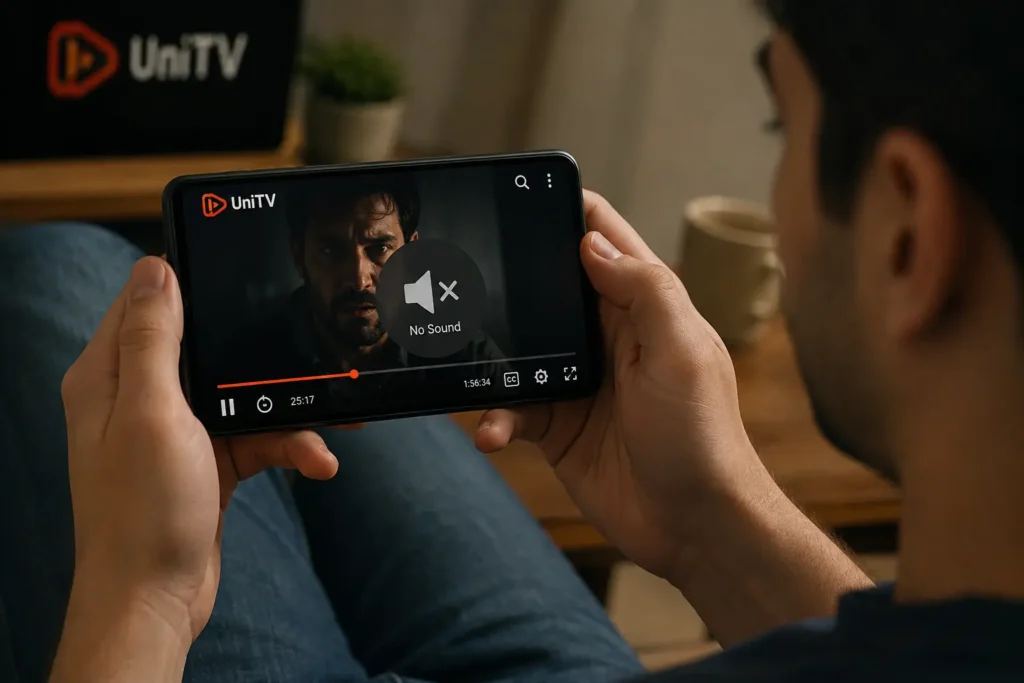
There are different issues that users may face while using the UniTV APK, and most of them can be solved by following some simple steps. Watching a movie or TV show on UniTV APK can be frustrating when the video is playing normally but there is no sound. Sometimes, the problem is caused by low media volume, a muted video, Bluetooth audio, a temporary app issue, or a problem with the device’s sound settings. The good thing is that you can solve this problem by checking some simple settings.
In this guide, we will explain the common reasons for the UniTVnet APK no sound problem and show easy ways to fix it.
Why Is UniTV APK Sound Not Working?
There can be several reasons why you cannot hear audio while using UniTV APK. The most common ones include:
- Media volume is turned down
- The video itself is muted
- Bluetooth is sending sound to another device
- Your phone or TV has a temporary sound problem
- The app has stopped working correctly
- The device speaker is not working properly
- The selected video has an audio problem
- The app or Android system needs an update
- A temporary cache problem is affecting the playback
Check the Media Volume
The first thing you should check is the media volume. In some cases, the ringtone is loud while the media volume is very low or muted. Start playing a video in UniTV APK and then press the volume up button. Open the volume settings and make sure the Media volume is turned up. Android uses a separate media volume for videos, music, games, and other media. After increasing the volume, play the video again and check whether the sound has returned or not. If you are still facing the issue, then try the next steps.
Check the Video Mute Button
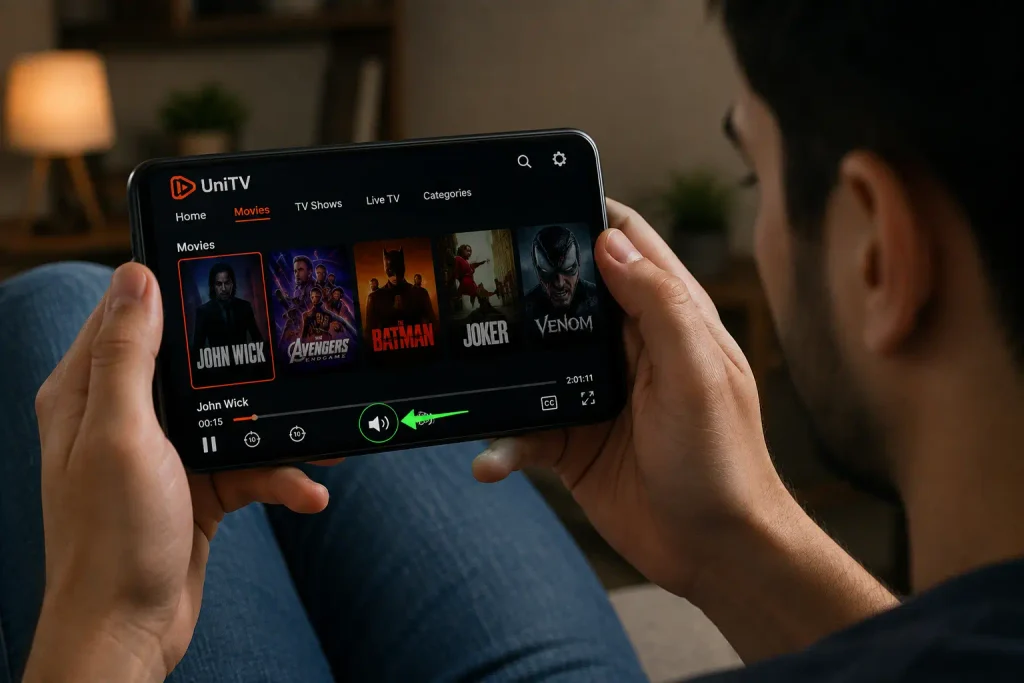
When you are watching the videos on UniTV APK then the app has its own mute button. If the video is muted, you may see a speaker icon with a line through it. Look at the video controls and find the sound icon. If it shows that the video is muted, tap it once to turn the sound back on. This is a very simple thing to check, but it can save you from changing other settings unnecessarily.
Try Another Movie or TV Show
It is possible that the video you are trying to watch does not have any audio or the audio is removed. We will suggest you try watching any other videos, and if you still face the issue, then there must be an issue with the app.
Turn Off Bluetooth
There are many people who use Bluetooth or headphones while watching movies and web series. If you are not hearing any audio while watching, then check that your device is not connected to wireless earbuds, headphones, a speaker, car audio system, or another device. In this situation, the video can continue playing on your phone while the sound is sent somewhere else.
Turn Bluetooth off temporarily and play the UniTV APK video again. Android also allows users to check and change where media audio is being played. If the sound comes back after turning Bluetooth off, check your connected Bluetooth device and make sure it is the audio output you actually want to use.
Check the Audio Output
If your device is connected to more than one audio device, the sound may be playing through the wrong one. While a video is playing, open your device media controls and check the selected audio output. You can choose where the media plays, such as the phone speaker or a connected Bluetooth device. Select the device you want to use and then return to UniTV APK.
Restart UniTV APK
Sometimes there is an issue with the app, and it can stop audio from working correctly. Close the UniTV APK completely and remove it from your recent apps. Wait a few seconds and open it again. Now play a video and check the sound. Restarting an app is a simple step and is worth trying before changing other settings.
Restart Your Android Device
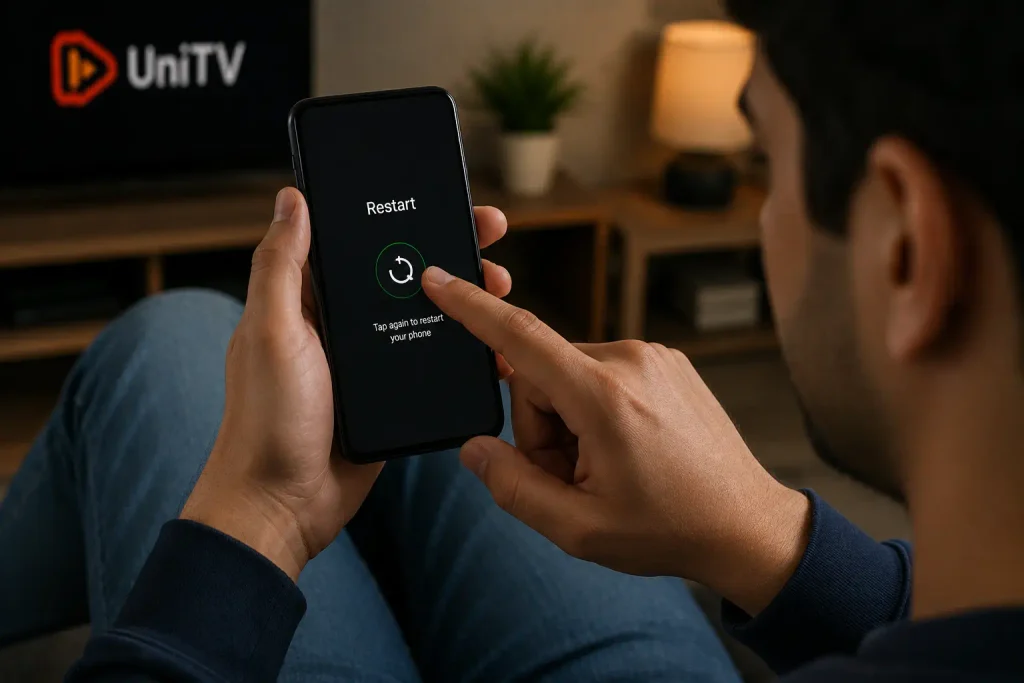
If restarting the app does not help, then you should definitely restart your phone, Android TV, or UniTV APK TV box. A restart can clear temporary problems that may affect apps and sound. After the device starts again, open the UniTV APK and test the audio.
Check Your Device Sound Settings
Open your Settings and go to Sound.
- Media volume is turned up
- The device is not muted
- The device is not in a mode that blocks media sound
- The correct speaker or audio device is selected
The exact names can be different depending on your Android version and device brand.
Disconnect Headphones
If wired headphones are connected, your device may think you still want to use them for audio. Remove the headphones and play the video through the device speaker. If you use wireless headphones, then you should disconnect them from Bluetooth as well and then test UniTV APK again. If sound works through the speaker but not through your headphones, the problem may be related to the headphones or their connection rather than the app.
Reinstall UniTV APK
If you have tried every possible way but still you are facing the same issue, then the last solution is that you should reinstall the UniTV APK. There are high chances that the version of the app you have installed is corrupted or incomplete because the original UniTV APK does not show such issues. We will suggest you download UniTV APK from our website because the file we are providing is complete and gives the best experience to the users.?
What If Sound Works in Other Apps?
Try these steps in order:
- Close UniTV APK.
- Open it again.
- Try another video.
- Check the video mute button.
- Clear the app cache.
- Restart your device.
- Check for an available app update.
- Reinstall the app if needed.
There is no need to change many device settings at once. Try one fix and test the app before moving to the next one.
Final Words
The UniTV APK no sound problem can be easily fixed with a few simple checks. Start with the media volume and video mute button, then check Bluetooth and the selected audio output. If those settings are correct, restart the app and your device. You can also clear the app cache, test another video, check your internet connection, and look for updates. If other apps also have no sound, focus on your phone, Android TV, or TV box instead of the app. The easiest approach is to test one solution at a time. This helps you find the real cause without making unnecessary changes to your device.